
Many of us find ourselves spending countless hours in front of our computers, whether for work, study, or leisure. However, all too often, this prolonged screen time can lead to discomfort, pain, and even injury if our workspaces are not properly designed. A comfortable and ergonomically optimized home office is essential for both productivity and well-being.
For many years I have been helping people create ergonomic home office workspaces, while minimize the need to purchase expensive new equipment. In this blog I will provide practical tips, innovative solutions, and budget-friendly ideas to help you create a home office workspace that promotes optimal posture and reduces strain. For a more in-depth and personalized assessment we at Be Active Be Well are available to meet with you individually.
SITTING POSITION
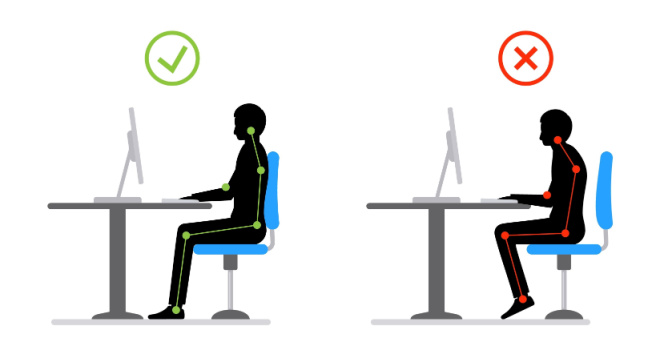
When conducting an ergonomic assessment, my initial focus is invariably seating posture. For computer work, proper sitting posture is the base on which the rest of the body will be aligned.
ERGONOMIC PRINCIPLE
Feet should be flat on the floor and hips slightly higher than the hips. This helps the body maintain the “normal” curve of the low back.
Active sitting position vs lumbar support
In the traditional ergonomic set up the recommendation is that the chair provide lumbar support. If you are not sitting at the workstation all day but instead more intermittently or if you do not have a chair that provides lumbar support, consider an “active sitting position” instead. Sitting forward in a chair, with the hips slightly higher than the knees, does require the postural muscles to work a bit but it also allows for freer movement of our arms.
If you are sitting and working on the computer for extended periods of time daily, I highly recommend investing in an adjustable chair. If you have an adjustable chair, make sure you have it set such that your back is supported. A slight recline of about 15 degrees is comfortable for most people.
If you don’t have an adjustable chair, use folded towels or a cushion to raise the sitting height if the chair is too low and boxes or books for foot support if the chair is too high.
DESK AND KEYBOARD HEIGHT

A typical desk (or dining room table) is too high for most people. If you do not have an adjustable height desk or if that desk does not adjust low enough, this is where things can get a bit complicated.
ERGONOMIC PRINCIPLE
With the shoulders and arms relaxed, when hands are on the keyboard the elbows should be bent to approximately 90 degrees making the forearms parallel to the floor.
If your work surface is too high the elbows will be bent less than 90 degrees (hands higher than your elbows) and you will tend to hunch your shoulders to correct this. You can try to tell yourself to relax your shoulders but they will continue to drift up overusing and straining the neck muscles. If you cannot lower the work surface, there are 3 ways to correct it:
- Raise the chair height and place a foot rest under your feet to create the alignment described above.
- Install a keyboard tray if that is feasible.
- Purchase a height adjustable desk that will accommodate the height you need. If you are of “average height,” there are affordable options. If you are shorter, this becomes a more costly proposition.
KEYBOARD
The keyboard position starts with the appropriate work surface height detailed above. But there are other factors to consider.
ERGONOMIC PRINCIPLE
Wrists should be aligned in a neutral position. There should be a straight line from the elbow to the fingers. Avoid wrist extension meaning that the fingers should not be higher than the wrist.

Many people work on a laptop computer. If you are broad shouldered the laptop keyboard may be too narrow for you and thus cause what is termed “ulnar deviation.” This simply means that the wrists bend outward when on the keyboard. There are many affordable external keyboards that are available that can be used with your laptop to provide a better fit.
If you are already using an external keyboard, for most people placing the keyboard FLAT on the work surface is the best option. DO NOT use the tabs under the keyboard to raise the top of the keyboard. This incline accentuates wrist extension while typing. Wrist extension causes the forearm muscles to work harder than necessary, increasing the risk of pain from overuse.
MOUSE

From trackpads to ergonomic joy sticks. There are many options.
ERGONOMIC PRINCIPLE
Everything you use frequently should be in an approximately 18 inch arc from your belly button. This includes the keyboard and mouse. The mouse should fit your hand so that the hand can be relaxed in between clicks.
If you are using a laptop, I highly recommend switching to an external mouse. Make sure you place the mouse as close to the keyboard as possible to avoid excessive reaching.
A typical mouse style will work for most people. Make sure the mouse fits your hand comfortably. If the mouse is too small, you will tend to over grip and cause strain on your hand and forearm muscles. Do not use a mouse with a thumb trackball. These are associated with overuse injuries of the muscles around the thumb.
If you are already experiencing discomfort with mouse use or your computer use patterns require heavy mouse work, then you will want to consider some of the ergonomic mouse designs that place the forearm, wrist, and hand in a more neutral position. This means that the thumb is higher than the pinky finger. Two that I like are the Hippus HandShoe Mouse and the Logitech Lift.
MONITOR HEIGHT
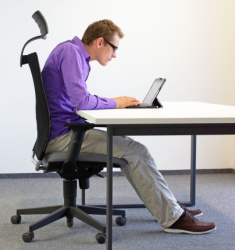
Along with the sitting height, a correct monitor height will create a more ergonomically correct posture when working at a computer. If your monitor is too low, you will slump forward.
ERGONOMIC PRINCIPLE
When in your optimal sitting position, and looking straight ahead, your eyes should be 1/3rd down from the top of the screen (approximately 4 inches on a typical screen). The monitor should be directly in front of you so that you are not chronically turning your head to one side or the other.
You can purchase adjustable monitor arms but a less expensive solution is to stack the monitor on monitor risers, books or reams of paper to achieve the optimal height. If you are using a laptop computer, place the laptop at the correct monitor height and then use an external keyboard and mouse on the work table to achieve the correct elbow and wrist alignments.
I can’t say it enough, if you are regularly working on a laptop computer, you need to have an external keyboard and mouse.
STANDING WORKSTATION
Standing workstations have become more popular in recent years. For those that are working at a computer for extended periods of time they can provide options for position changes. To do this effectively you will need to have an adjustable height work surface. Raise the work surface so that in a comfortable standing position your elbows are bent to approximately 90 degrees. As long as the monitor is on the same surface as the keyboard you will not have to adjust the monitor height.
ERGONOMIC PRINCIPLE
When standing make sure you are not locking your knees. Stand either evenly on both feet or with one foot resting up a few inches on a foot rest. Alternate which foot is on the foot rest.
BREAK TAKING
You must take breaks. This is probably the most difficult to accomplish of all the recommendations in this blog. Frequent micro breaks (30 seconds every 30 minutes) and changes in position, as well as longer breaks every couple of hours. My rule of thumb is that if you are hydrating appropriately throughout the day you should need to get up to use the bathroom every couple of hours. This takes care of the longer breaks. If you can sit stationary for more than 2 hours, you need to evaluate your hydration.
During a micro break just get your hands off the keyboard and eyes off the computer screen. Gaze at something in the distance and move your body. Set an alarm as a reminder or use your workflow as a reminder. Every time I do “X”, I take a micro break.
READING

It is critical to bring reading material up to your eyes and not drop your head down to your reading material. This includes your phone! If you are sitting, place pillows on your lap to support your arms when holding reading material.
PAIN
If you are experiencing pain you need to make changes. First compare your work area to my recommendations above. If you still have pain, you will need an individualized assessment of your workstation. If you use the workstation as a part of your employment, talk to your employer and see if they will provide an ergonomic assessment.
We at Be Active Be Well are available for in home or virtual personalized ergonomic assessments. Please reach out to us through the website to discuss if a personalized assessment is what you need.
We provide in-home assessments in the San Francisco Bay Area. Contact us for a personalized Physical Therapy, Occupational Therapy, or Speech Therapy assessment.